Seven years ago, on April 29th 2013, I walked into the old Castro Street Mozilla headquarters in Mountain View for my week of onboarding and orientation. Jubilant and full of imposter syndrom, that day marked the start of a whole new era in my professional career.
I'm not going to spend an entire post reminiscing about the good ol' days (though those days were good indeed). Instead, I thought it might be useful to share a few things that I've learned over the last seven years, as I went from senior engineer to senior manager.
Be brief
Je n’ai fait celle-ci plus longue que parce que je n’ai pas eu le loisir de la faire plus courte.
- Blaise Pascal
Pascal's famous quote - If I had more time, I would have written a shorter letter - is strong advice. One of the best way to disrupt any discussion or debate is indeed to be overly verbose, to extend your commentary into infinity, and to bore people to death.
Here's the thing: nobody cares about the history of the universe. Be brief. If someone asks for someone specific, give them that information, and perhaps mention that there's more to be said about it. They'll let you know if they are interested in hearing the backstory.
People like to hear themselves talk. I certainly do. But over time I realized that, by being brief, I get a lot more attention from people, so they ask more questions, reach out more often, because they know I won't drag them into a lengthy debate.
But don't fall into the extreme opposite. Being overly brief can be detrimental to a conversation, or make you appear like you don't care to participate. The is a right balance to be found between too short and too long, depending on the context and your audience.
Tell a good story
Or more accurately, tell a story that touches your audience directly. If you're working on a security review of a nodejs application hosted in heroku, tell them stories of other nodejs applications hosted in heroku, ideally from a nearby team or organization. Don't go lecture them on the need for network security monitoring in datacenters, they simply won't care, as it doesn't touch them.
If you want to get people interested in what you're doing, first you need to take interest into what they are doing, then you need to tell them a good story they will care about. Finding out what that is will increase your chances of success.
That story will also change depending on your audience. Engineers will care about one thing, their managers something else, and the executives another thing entirely. Emphasize the parts of your project or idea that your audience will be most interested in to catch their attention, without losing the nature of your work.
This isn't rocket science. In fact, it's old school business playbook. Dale Carnegie's 1936 "How to Win Friends & Influence People" covers this at length. And while I certainly wouldn't take that book to the letter, it raises a number of points which I think are relevant to security professionals.
Be technical
I started out at Mozilla as a senior security engineer focused entirely on operations and infrastructure. I spent my days doing security reviews, making guides and writing code. 100% technical work. When I got promoted to staff, then to manager, then to senior manager, the proportion of technical work gradually reduced to make room for managerial work.
Managing is important. With 9-or-so people on the team, being able to accurately focus attention on the right set of problems is critical to the security of the perimeter. In fact, there's an entire school of thought that advocates that managers should be entirely focused on management tasks, and stay away from technical work.
For better or worse, I don't buy into that. I believe, for myself and for my team, that I'm a better team manager and security strategist when I have a deep technical understanding of the issues at hand.
That doesn't mean non-technical managers are bad. In fact, I think there are many situations where a non-technical manager is a better choice than a technical one. But for the field of operations security, at Mozilla, managing the people I manage, I think being technical is a strength.
How do you remain technical while being a manager? There are certainly areas in which I don't have a deep technical understanding and struggle to acquire one. But in general, I find that experimenting outside core projects, and picking up tasks outside the critical path, helps remain current and relevant.
For example, if the organization decide to switch to writing web applications in Rust with Actix, I'll write one myself. I won't get to the level of expertise I have in other areas, but I'll know enough to be relevant during security reviews and threat modeling sessions. And I continue to acquire knowledge in my areas of specialty: cloud infrastructure, cryptographic services, etc.
I don't expect to leave the management track any time soon. In fact, I expect to continue to grow in it. But I find it important that I could go back to a senior staff engineer role if I wanted to. Perhaps it is hubris, time will tell.
Never make assumptions
A year ago, I spent a night seated on a small table outside the reception of the Wahweap campground in Lake Powell, Arizona, as I was helping my team re-issue an intermediate certificate used to sign Firefox add-ons. It was freezing outside. I caught a cold, and a strong lesson, as dozens of my peers where untangling a mess I had helped create.
We called this incident "Armagaddon" internally, and it all started because we made a few assumptions we never took time to verify. We assumed that certificate expiration checking was disabled when verifying add-ons signatures, when in fact it was only disabled for end-entities. When the intermediate expired, everything blew up.
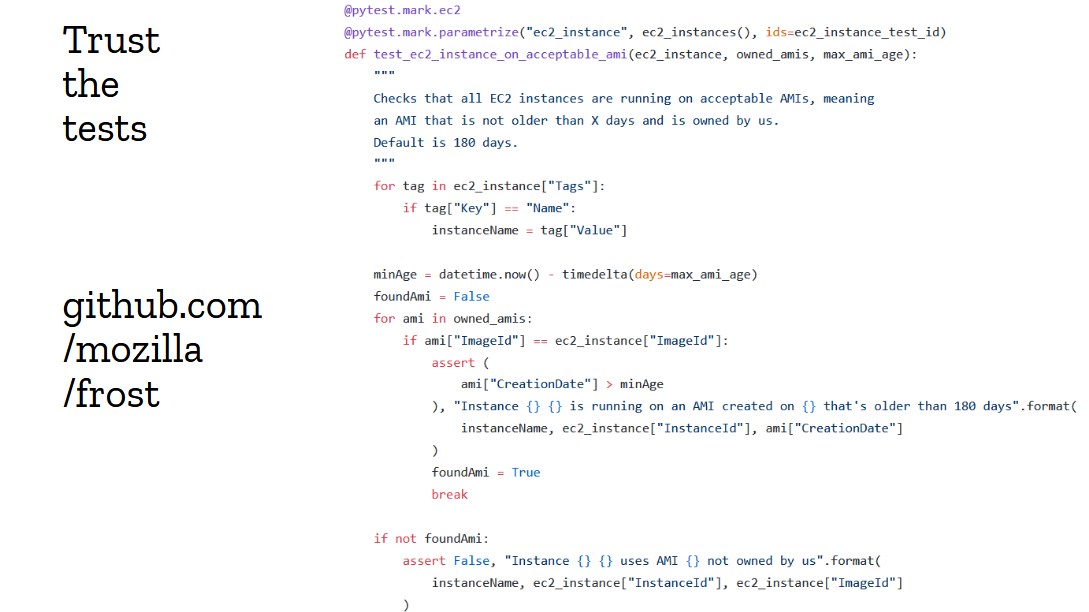
I learned that lesson. I also learned to identify and question every assumptions that we, engineers, make. The more complex a system becomes - and the Firefox ecosystem certainly is a complex one - the more assumptions people make. Learning to identify and consistently call out those assumption, forcing myself and others to verify them, and basing decisions on hard data and tests is critically important.
There is a place and a time where assumptions can be made and risks be taken, but not always, and certainly not on mission critical components. As an industry, we've bought into the "go fast and break things" mindset that is plain wrong for a lot of environments. Learning to slow down and taking the time to verify assumptions is, perhaps, the biggest cultural change we need.
Don't ignore backward compatibility
You think differently about engineering when you have to maintain compatibility with devices and software that haven't been updated in one, and sometime two, decades. Firefox falls into that category. Every time we try to change something that's been around a while, we run into backward compatibility issues.
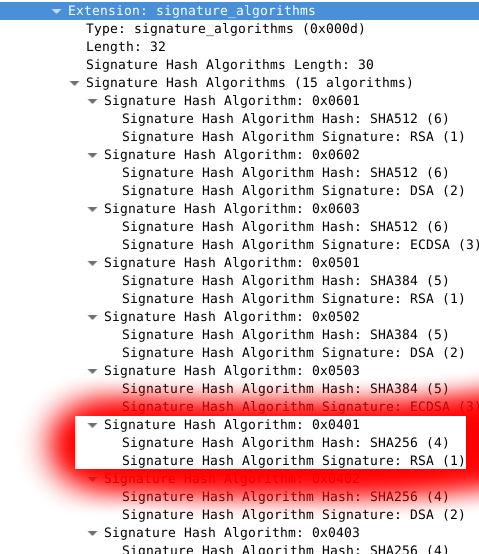
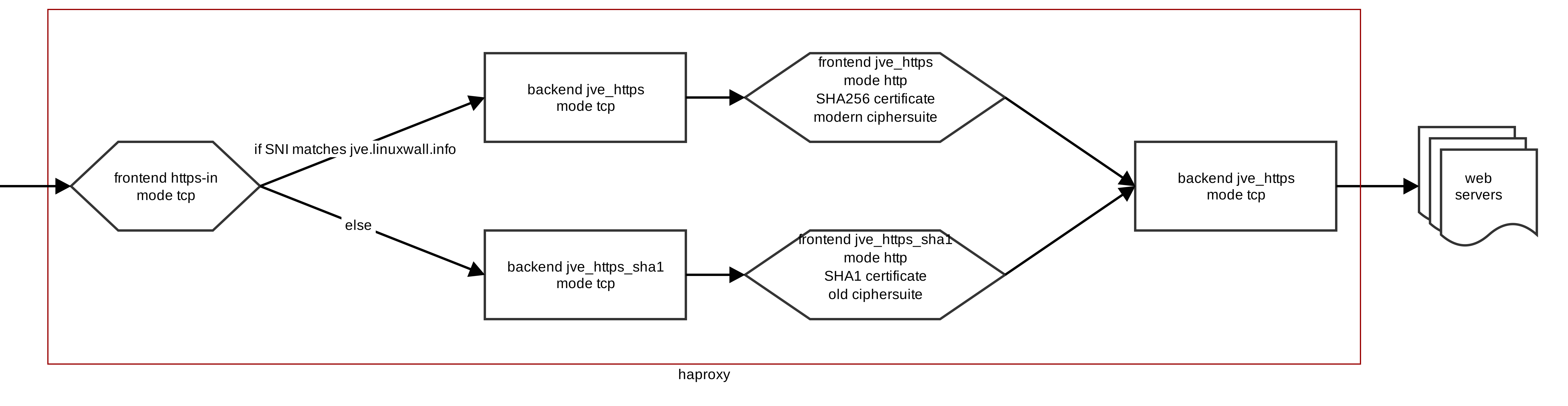
Up until recently, we maintained a separate set of HTTPS endpoints that supported SSL3 and SHA-1 certificates, issued by decomissioned roots, to allow XP SP2 users to download Firefox installers. And when I say recently, I mean one or two years ago. Long after Microsoft had stopped supporting those users.
I have tons of examples of having to maintain weird configurations and infrastructure for deprecated users no one wants to think about. Yet, they exists, and often represent a sizeable portion of our users that cannot simply be ignored.
As a system designer, learning to account for backward compatibility is a learning curve. It's certainly much easier to greenfield a process while ignoring its history than to design a monster that needs to adopt modern techniques while serving old clients.
Some folks are better at this than others, and this is where you really feel the importance of experience and the value of tenured employees. Those people who jump ship every 18 months? They can't tell you a thing about backward compatibility. But that engineer who's been maintaining a critical system for the past 5 or 10 years absolutely can. Seek them, ask for the history of things, it's always interesting to hear!
Use boring tech
Nobody ever got fired for building a site in Python with Django and Postgresql. Or perhaps you'd like to keep using PHP? Maybe even Perl? The cool kids at the local hackathon will make fun of you for not using the latest javascript framework or Rust nightly, but your security team will probably love you for it.
The thing is, in 99% of cases, you'll be an order of magnitude more productive and secure with boring tech. There are very few cases where the bleeding edge will actually give you an edge.
For example, I'm a big fan of Rust. And not because not being a big fan of Rust at Mozilla is a severe faux-pas. But because I think the language team is doing a great job of distilling programming best practices into a reasonable set of engineering principles. Yet, I absolutely do not recommend anyone to write backend services in Rust, unless they are ready to deal with a lot of pain. Things like web frameworks, ORMs, cloud SDKs, migration frameworks, unit testing, and so on all exist in Rust, but are nowhere as mature or tested as their Python equivalents.
My favorite stack to build a quick prototype of a web service is Python, Flask, Postgresql and Heroku. That's it. All stuff that's been around for over a decade and that no one considers new or cool.
Bugzilla is written in Perl. Phabricator or Pocket are PHP. ZAP is Java. etc. There are tons of examples of software that is widely successful by using boring tech, because their developers are so much more productive on those stacks than they would be on anything bleeding edge.
And from a security perspective, those boring techs have acquired a level of maturity that can only be attained by walking the walk. Sure, programming languages can and do prevent entire classes of vulnerabilities, but not all of them, and using Rust won't stop SQL injections or SSRF.
So when should you not use boring tech? Mostly when you have time and money. If you're flush on cash and you unique problems, taking six months or a year to ramp up a new tech is worthwhile. The ideal time to do it is when you're rewriting a well-established service, and have a solid test suite to verify the rewrite is equivalent to the original. That's what the Durable Sync team did at Mozilla, when they rewrote the Firefox Sync backend from Python/Mysql to Rust/Spanner.
Delete your code
My first two years at Mozilla were focused on an endpoint security project called MIG, for Mozilla Investigator. It was an exciting greenfield project and I got to use all the cool stuff: Go, MongoDB (yurk), RabbitMQ (meh), etc. I wrote tons and tons of code, shipped a fully functional architecture, got a logo from a designer friend, gave a dozen conference talks, even started a small open source community around it.
And then I switched gears.
In the space of maybe 6 months, I completely stopped working on MIG to focus on cloud services security. At first, it was hard to let go of a project I had invested so much into. Then, gradually, it faded, until eventually the project died off and got archived. My code was effectively deleted. Two years of work out the window. This isn't something you're trained to deal with. And in fact, most engineers, like I was, are overly attached to their code, to the point of aggressively fighting any change they disagree with.
If this is you, stop, right now, you're not doing anyone any favors.
Your code will be deleted. Your projects will be cancelled. People are going to take over your work and transform it entirely, and you won't even have a say in it. This is OK. That's the way we move forward and progress. Learning to cope with that feeling early on will help you later in your career.
Nowadays, when someone is about to touch code I have previously written, I explicitely welcome them to rip out anything they think is worth removing. I give them a clear signal that I'm not attached to my code. I'd much rather see the project thrive than keep around old lines of code. I encourage you to do the same.
Be passionate, and respectful
Security folks generally don't need to be told to be passionate. In fact, they are often told the opposite, that they should tone it down a notch, that they are making too many waves. I disagree with this. I think it's good and useful to an organization to have a passionate security team that truly cares about doing good work. If we're not passionate about security, who else is going to be? That's literally what we're paid to do.
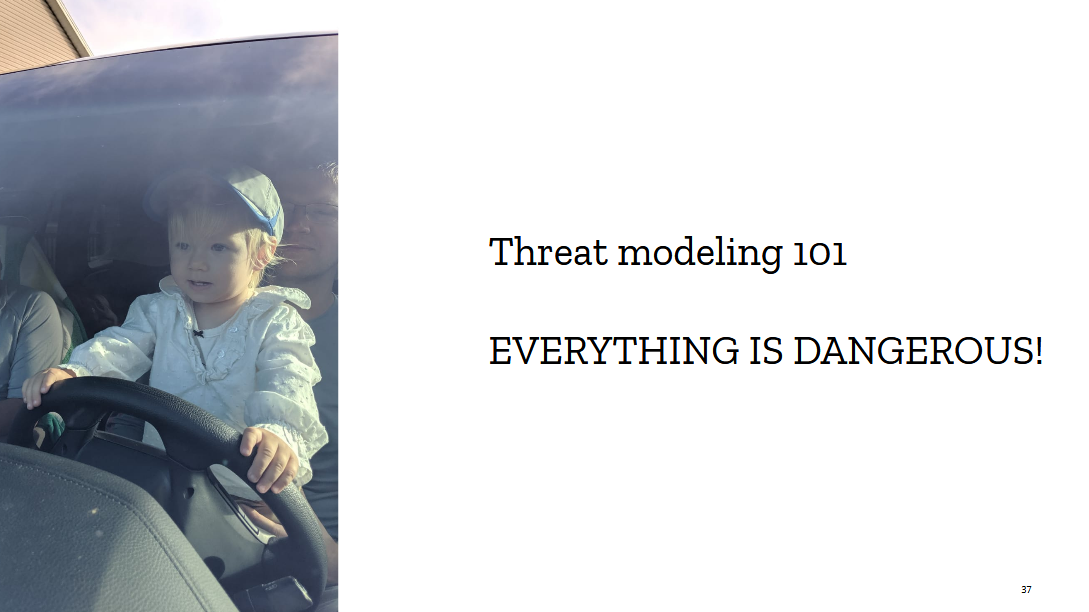
When a team comes ask for a security review about a new project, they expect to receive the full-on adversarial doomsday threat model experience from us. They want to talk to someone who's passionate about breaking and hardening services to the extreme. So this is what we do in our risks assessments meetings. We don't tone it down or play it safe, we push things to the extreme, we're unreasonable and it's fun as hell!
But when folks respectfully disagree with my recommendation to encrypt all databases with HSM-backed AES keys split with a Shamir threshold of 4 and store each fragment in underground bunkers around the world to prevent the NSA from compromising several of our employees to access the data, I remain respectful of their opinion. We have a productive and polite debate that leads to a reasonable middle-ground which sufficiently addresses the risks, and can be implemented within timeline and budget.
Both passion and respect are important quality of a successful engineer (or a person, really). I like to end a day knowing that I've done the right thing and that, even if everything didn't go my way, I have made a good case and I'm satisfied with the outcome.
Onward.
And so this is seven years at Mozilla. A lot more could be said about the work accomplished or the lessons learned, but then this would turn into a book, and I swore to myself I wouldn't write another one of those just yet.
Working at Mozilla is a heck of a job, even in those trying times. The team is fantastic, the work is fascinating, and, as they said during my first week of onboarding back in the old Castro street office, we get to work for Mankind, not for The Man. That's gotta be worth something!


















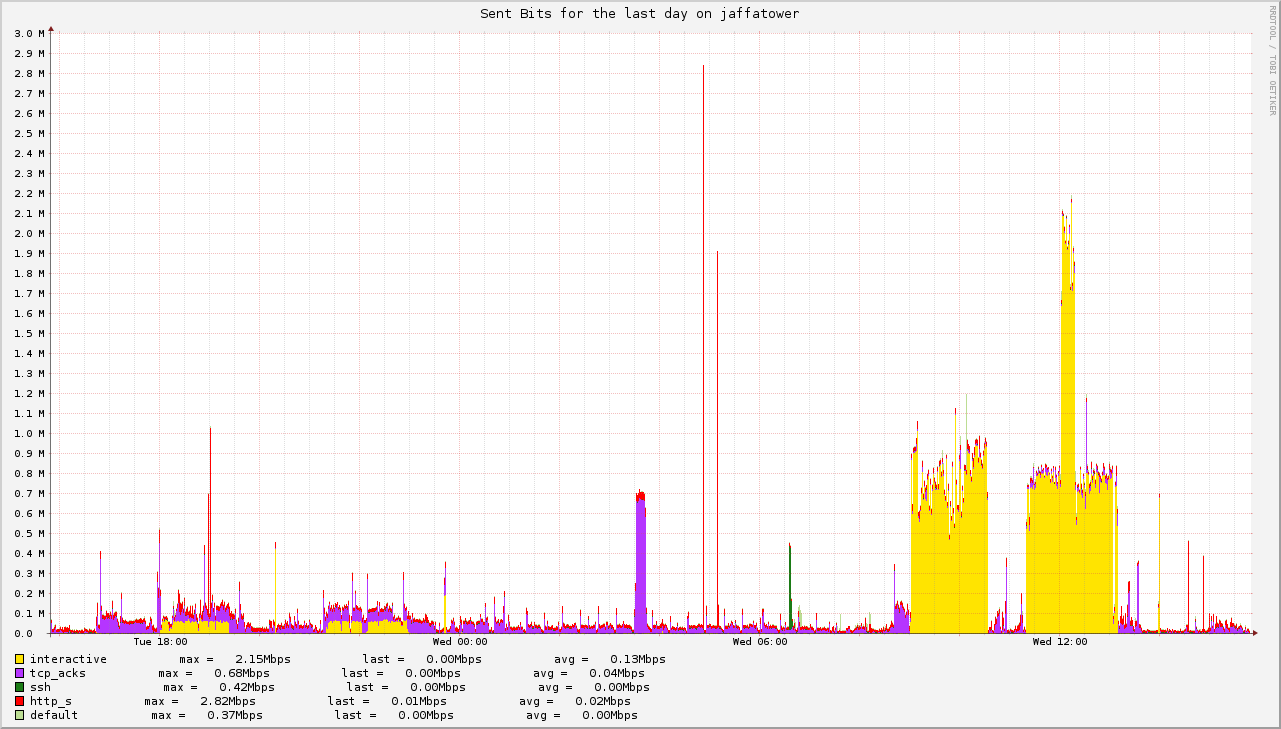






 net today can be hosted with just a few kilobytes per seconds of bandwidth. The myth of gigabits internet connections for residences is built by ISPs as a marketing tool. Even at pick times, self-hosting at home while doing video-conferences does not make my uplink use more than one megabit of traffic. And I verizon pay for 25 of those!